Code
The Code view (Ctrl+3) lists the repository’s files, without those .gitignore excludes. Select one to edit it; Ctrl+S saves, and the change shows up in Changes. / filters the file list, the button above it creates a file, and the … menu of a file shows its changes, copies links to it (see Sharing) or deletes it.
The same editor edits wiki pages and task descriptions. It works like VS Code’s for everyday editing — every key is in Keyboard shortcuts.
Markdown files
Section titled “Markdown files”Markdown files switch between Edit and Preview. The preview renders like the wiki, including References, and typing [[ in the editor lists the tasks, pages and files to link.
Find and replace
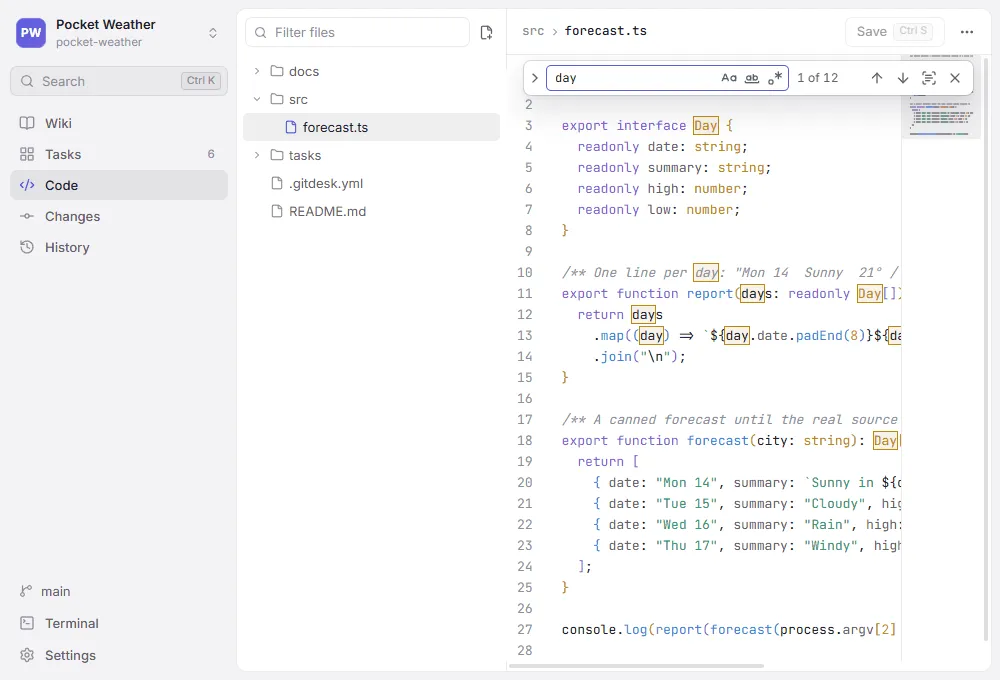
Section titled “Find and replace”Ctrl+F opens the find bar at the top right, filled in with the selected text. Ctrl+H (⌥⌘F on macOS) opens it with a replacement field.
- The buttons in the field match case, whole words only, or treat the text as a regular expression; a replacement can then use the groups as
$1,$2. - The counter shows which match is selected and how many there are (“3 of 12”). An invalid regular expression turns the field red.
EnterandShift+Entergo to the next and previous match,Alt+Enterselects all of them to type over them at once. In the replacement field,Enterreplaces one match andCtrl+Alt+Enterall of them.- Find in selection limits the search to the text selected when you turn it on.
Esccloses the bar and returns to the text.
Ctrl+G jumps to a line (120, +10, 50%, or 120:8 for a column).
Several cursors
Section titled “Several cursors”Alt+click adds a cursor; Ctrl+Alt+↑ / ↓ add one on the line above or below. Ctrl+D selects the next occurrence of the selection (or of the word at the cursor), Ctrl+Shift+L all of them; whatever you type then changes every one. Shift+Alt+drag, or dragging with the middle mouse button, selects a rectangle. Esc goes back to a single cursor.
Folding
Section titled “Folding”Point at the line numbers to see arrows beside every block that folds: functions, classes and other bracketed blocks in code, sections under a heading in Markdown. A folded block shows as ⋯; click it to open it again. Ctrl+Alt+[ folds everything, Ctrl+Alt+] unfolds everything.
Reading aids
Section titled “Reading aids”- The bracket pair at the cursor is outlined; a bracket without a partner is red. Nested pairs take turns in three colours.
- Code files show a minimap on the right: click or drag it to scroll. Turn it off in Settings or with Toggle minimap in the command palette. Markdown and text files and narrow editors have none.
Alt+Zswitches word wrap; Markdown and text files wrap by default.