Tasks
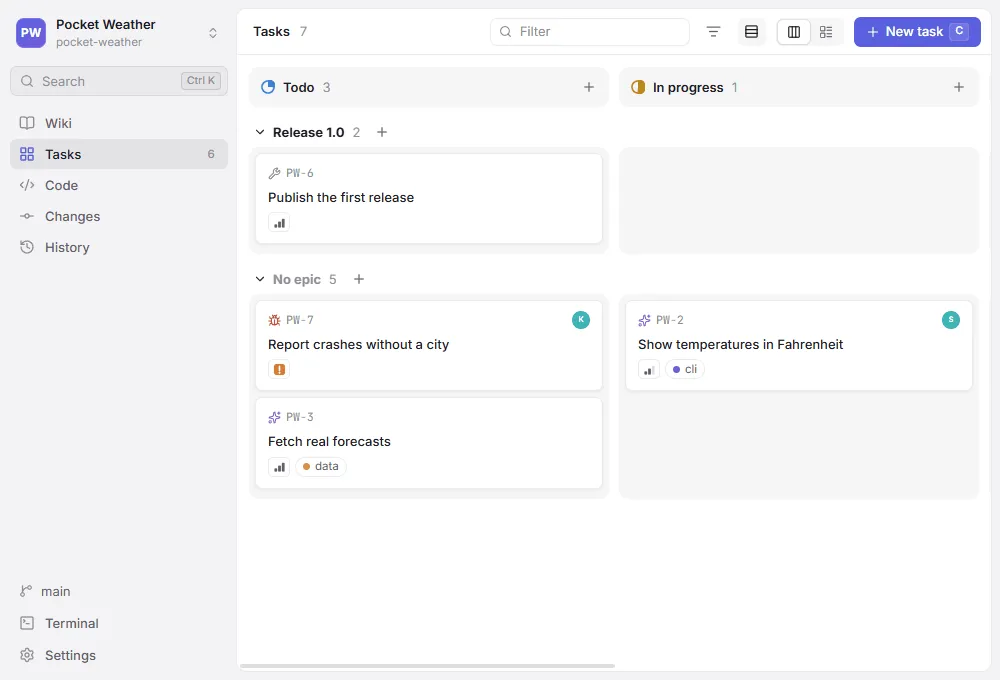
The Tasks view (Ctrl+2) shows the project’s tasks on a board or in a list. Each task is one Markdown file in the task folder (tasks/ unless Settings names another), named after its ID:
The task file
Section titled “The task file”---id: GENBEYA-12title: Virtualize long liststype: improvementstatus: todopriority: mediumassignee: alicelabels: [performance]---
Render only visible rows in the file tree and history.
- [ ] File tree- [ ] History- IDs are
PREFIX-number; the prefix is set in Settings (taskPrefix). IDs stay unique across epics. statusis one of the workflow states,priorityisurgent,high,mediumorlow(none when left out),typeone of the task types.- Extra frontmatter fields and YAML comments survive edits made in Genbeya; configure them as custom fields to edit them in Genbeya too.
Write [[GENBEYA-12]] in a page, a description or a comment to show the task’s title and current status anywhere; a plain GENBEYA-12 links too. See References.
Task files change with the checked-out branch and are committed like code. To see the same board on every branch, keep the tasks on the shared Content branch (Settings → Where content lives → Tasks); every change is then committed there right away, while the wiki can stay with the code.
The board
Section titled “The board”- Drag cards between columns to change their status. Board and List switch the layout; the list shows every task, including those in hidden columns.
C(or New task) creates a task,+at the top of a column creates one in that column./filters by text; Filter by narrows the board and the list to a type, an epic, an assignee, a priority or a label.- A card shows the task’s type, ID, title, assignee, priority, labels and date fields, overdue ones in red.
The task panel
Section titled “The task panel”Click a card to open the task beside the board.
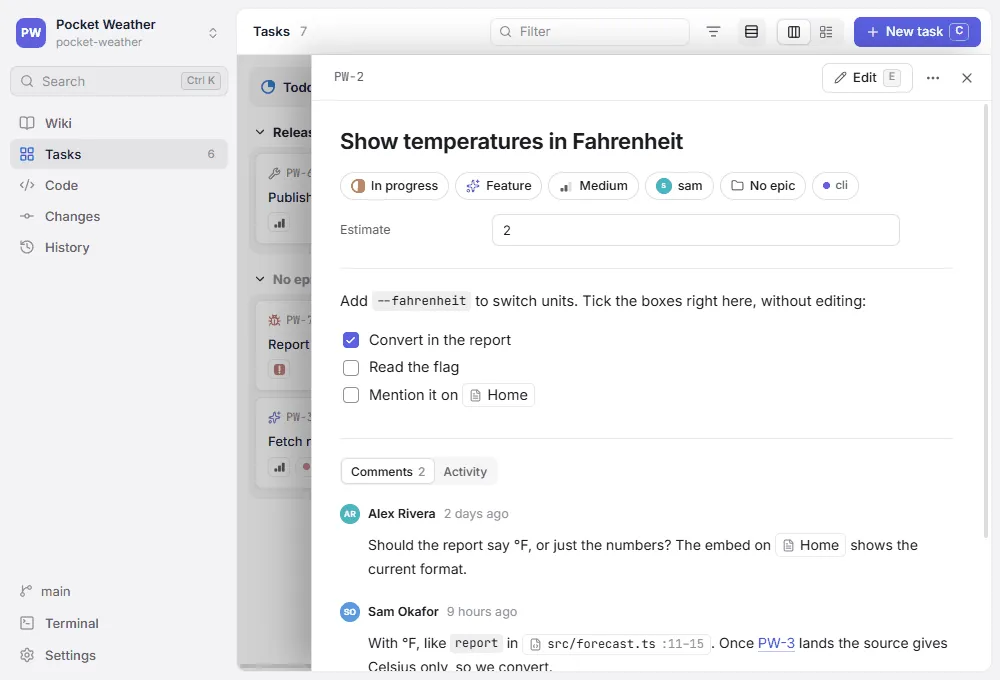
- Status, type, priority, assignee, epic and labels change right away from the chips under the title; custom fields sit below them. Assignee offers the repository’s people — see Writing pages.
- Checkboxes in the description can be ticked without editing.
E(or Edit) edits the title and description, with[[completion for References.Ctrl+SorCtrl+Entersaves,Esccancels, andEscagain closes the panel.- The
…menu copies links to the task (see Sharing) and deletes it.
Comments
Section titled “Comments”Below the description, Comments lists what people wrote about the task. Type in the box and press Ctrl+Enter (⌘Enter on macOS) to add a comment. Markdown, [[references]], @mentions and dates work as in the description; the box completes @ and // (see Writing pages) but not [[, so type references in full. Your own comments have buttons to edit and delete them.
Comments are signed with your Git name (git config user.name, or the name Git takes from your system account) and stored at the end of the task file, so they read well anywhere Markdown is shown:
---id: GENBEYA-12title: Virtualize long listsstatus: todo---
Render only visible rows in the file tree and history.
## Comments
### Ada Lovelace — 2026-10-10 14:32+02:00
The history needs it most.
### Alan Turing — 2026-10-11 09:05+02:00
Agreed, see [[GENBEYA-14]].- The comments start at the first
## Commentsheading that is followed by a comment heading:### Name — date time, with the time to the minute and the UTC offset. - New comments go last, so comments written on two branches merge cleanly.
- Editing the description never changes the comments, and the other way round.
- A line in a description or comment that would read as a comment heading is saved with a leading
\.
Activity
Section titled “Activity”Activity, next to Comments, shows who changed the task and when, from the Git history of its file: status, type, priority, assignee, title, epic and custom fields with their old and new values, added and removed labels, description edits, and added, edited or deleted comments. It follows the task when it moves between epics, and lists the latest 100 commits; click a commit to open it in History.
Changes saved but not committed yet come first, marked Not committed yet. When the tasks live on the Content branch, every edit is committed right away, so the activity is always complete.
An epic is a folder in the task folder: tasks/Login rework/GENBEYA-14.md belongs to the epic Login rework. Folders can nest (Auth/Tokens). IDs stay unique across epics.
- Epic under a task’s title moves it into another epic, or into a new one; the file moves along.
- Swimlanes by epic, next to the layout switch, shows one row per epic on the board. Dragging a card into another row moves it to that epic.
- Filter by narrows the board and the list to one epic.
Workflow states
Section titled “Workflow states”The board’s columns are the workflow states, set in Settings → Workflow (statuses in .genbeya.yml), in order; the last one counts as done. To keep the board short, untick a state in the list layout: it disappears from the board for everyone (hiddenColumns in .genbeya.yml) and stays in the list. Tasks in a state that is no longer configured appear in an extra column so nothing gets lost — move them into a configured state.
Column icons
Section titled “Column icons”A state shows a ring that fills as work advances, and a check for the last one. To give a column its own icon, pick one next to the state in Settings → Workflow. In .genbeya.yml such a state is written as a name with an icon; states without one stay plain names:
statuses: - todo - name: in-progress icon: play - name: done icon: flagA task can have a type, such as bug or feature: its icon shows on the card, in the list and under the title, where Type changes it. Filter by narrows the board to one type. Without types in .genbeya.yml, the types are bug, feature, improvement and chore. Configure your own in Settings → Task types, with an icon and an optional colour each:
types: - name: bug icon: bug tone: red # gray, blue, green, yellow, orange, red or purple - name: spike icon: flask-conical - feature # a name alone brings its usual icon and colourA list of names, such as types: [bug, feature], works too: well-known names (bug, feature, improvement, chore, task, story, docs, question, research) get their usual icon, others a generic one. A task whose type is not configured keeps it and shows the generic icon. types: [] turns types off.
Templates
Section titled “Templates”Choosing a type for a new task fills its description from the type’s template, a Markdown file in the task folder named after the type: tasks/.templates/bug.md. Frontmatter in the template presets the new task’s priority, assignee, labels and custom fields, unless you set them already:
---priority: highlabels: [bug]---
## Steps to reproduce
## Expected
## Actual
The template button next to a type in Settings → Task types opens its template in Code, and creates it first if there is none. Templates live with the tasks: when the tasks are on the Content branch, the button names the file there instead, since Code shows the checkout. Folders in the task folder whose names start with a dot hold no tasks, so .templates is no epic.
Custom fields
Section titled “Custom fields”Fields that every task of the project should have, such as an estimate or a due date, are configured in Settings → Custom fields, or as fields in .genbeya.yml:
fields: - name: estimate type: number - name: due type: date # written as 2026-05-01 - name: area type: choice options: [ui, backend, docs] - name: reviewer # text, unless a type is givenThey appear under a task’s properties and are saved to its frontmatter as you change them; emptying a field removes it from the file. Names start with a letter and use letters, digits, - and _; Genbeya’s own keys (id, title, type, status, priority, assignee, labels, epic) are taken. Field types are text, number, date and choice. Other frontmatter fields of a task show below the configured ones, read-only, and are never lost: removing a field from the settings leaves the values in the task files.
Every key of .genbeya.yml is described in Settings.